

Open the Explore page
Go to gestel.studio/explore or click Explore in the top nav. You’ll see a gallery of images generated by other GESTEL users.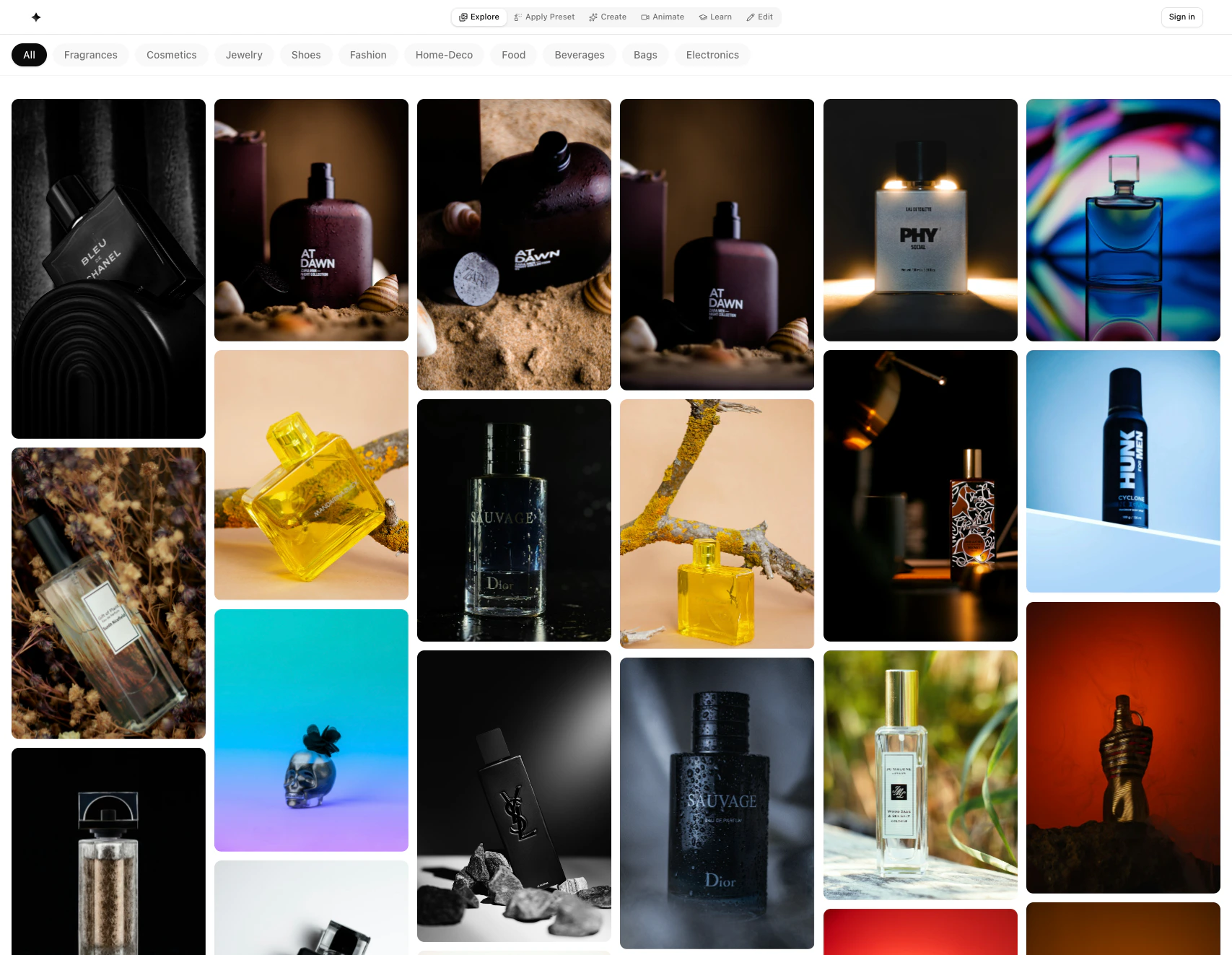
Find a scene you like
Browse the gallery or use the category filters at the top to narrow the feed. Click on an image to open it, then click Apply Preset.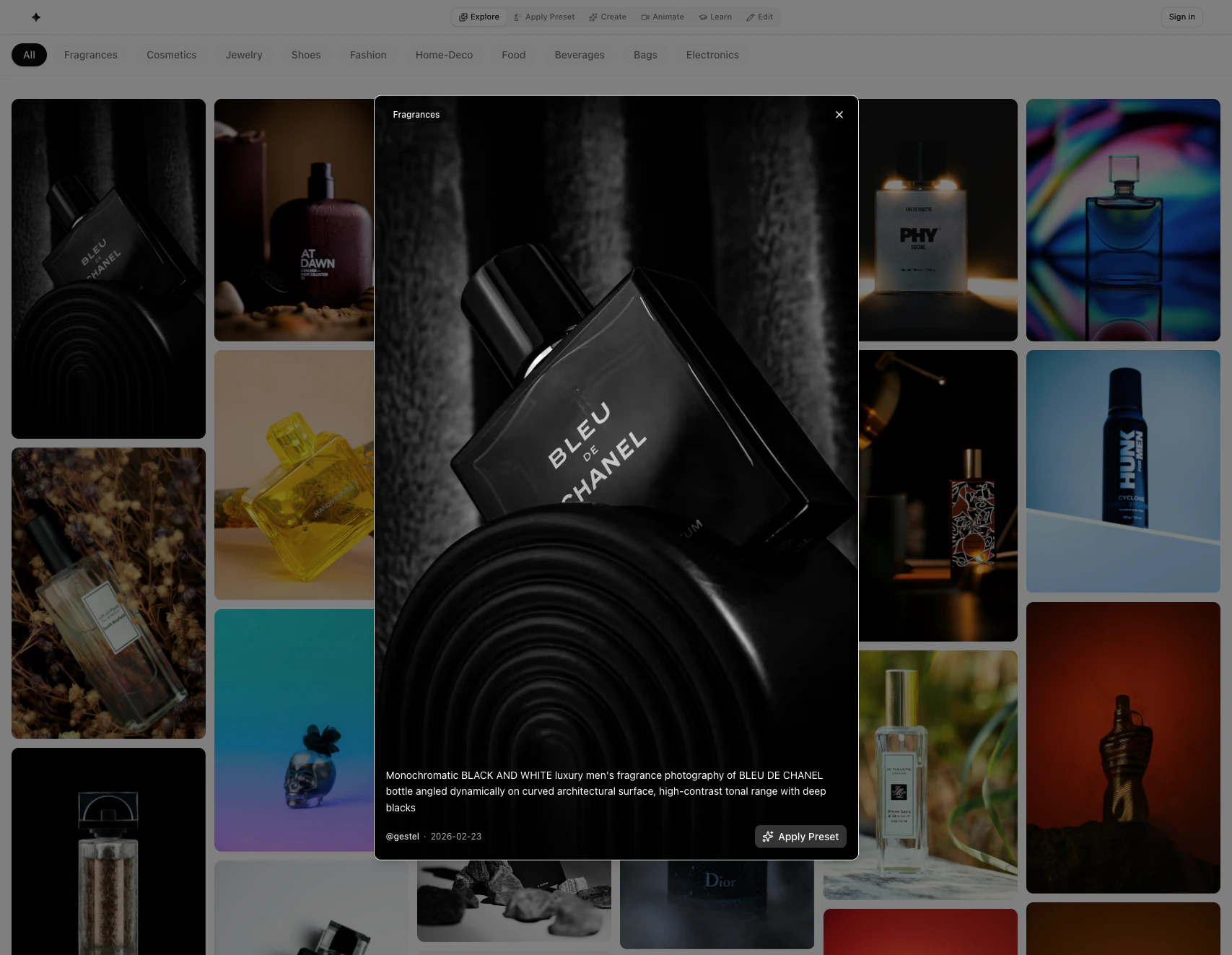
Upload your product photo
You’ll be taken to the Apply Preset page with the scene already loaded. Click the IMAGE dropdown and select Product, then upload your product image. JPEG, PNG, and WebP are all supported.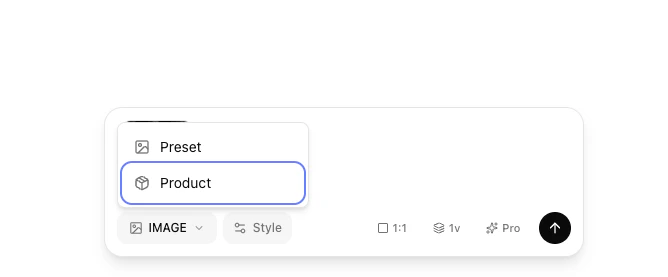
Choose your engine
Click the engine label (e.g. Fast) at the bottom bar to open the Model selector.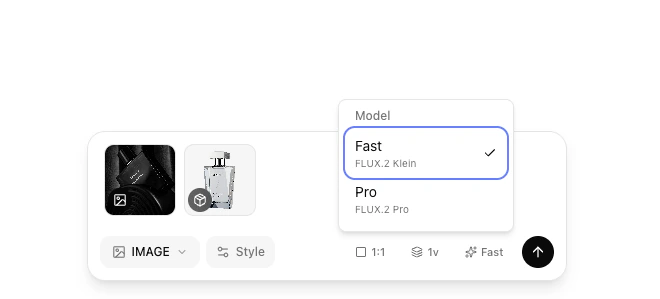
Pro produces higher-quality results with more detail. Fast is quicker and cheaper — good for exploring ideas.
| Engine | Credits |
|---|---|
| Pro | 10 |
| Fast | 3 |
Click Generate
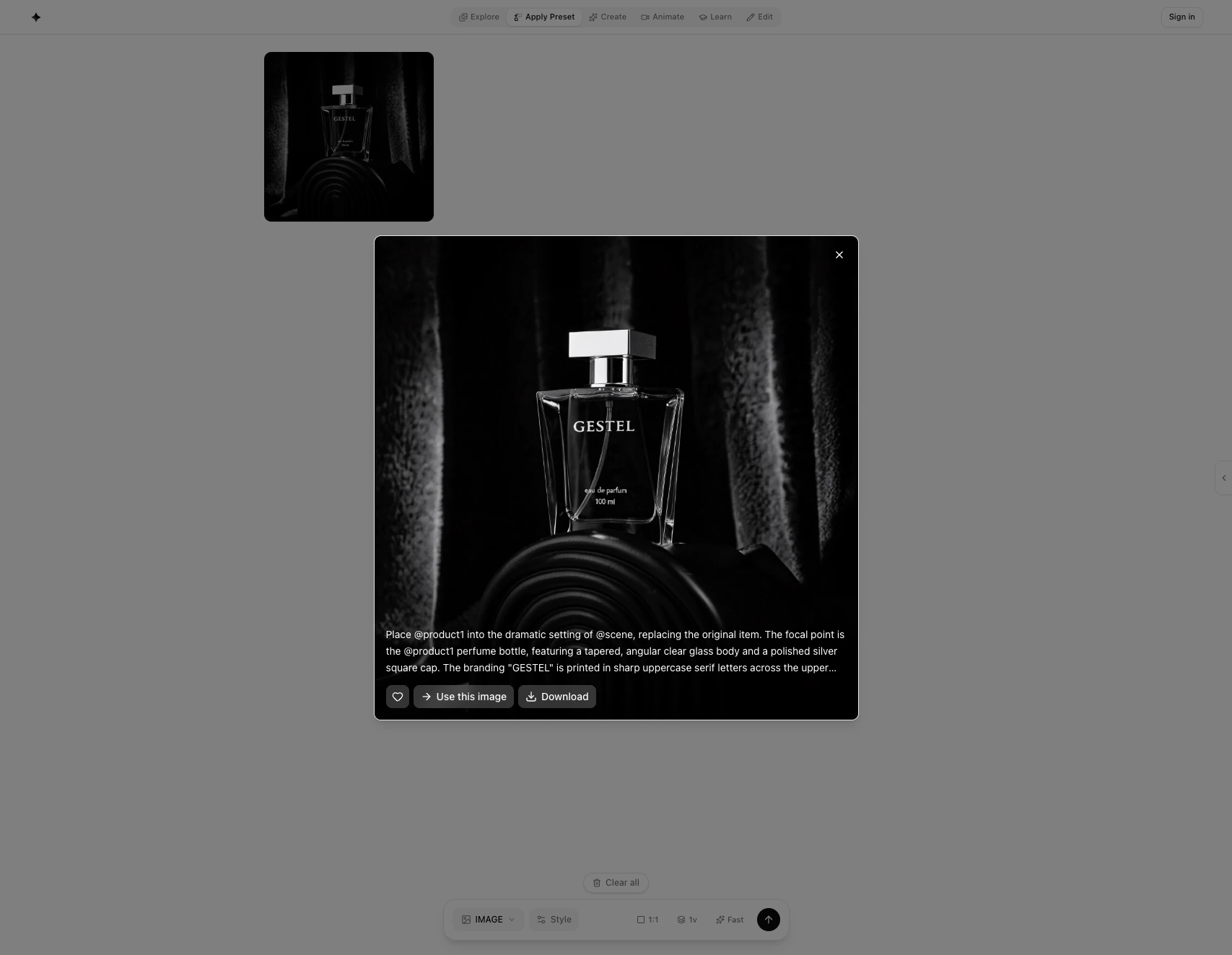
Hit the generate button (the arrow icon at the bottom right). You’ll see a results grid fill in as images finish. Generation takes 20–60 seconds depending on the engine and server load.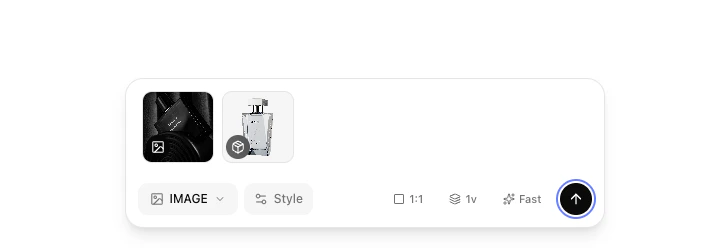
Next steps
Create overview
Generate entirely new scenes from reference images.
Edit tools
Remove backgrounds, upscale, relight, and more.
Credits
Understand how credits are used and how to get more.